 Atlassian Marketplace
Markdown Pages for Confluence
Import Markdown folders as page trees, edit pages as Markdown, and export pages to Markdown with their images.
What it does
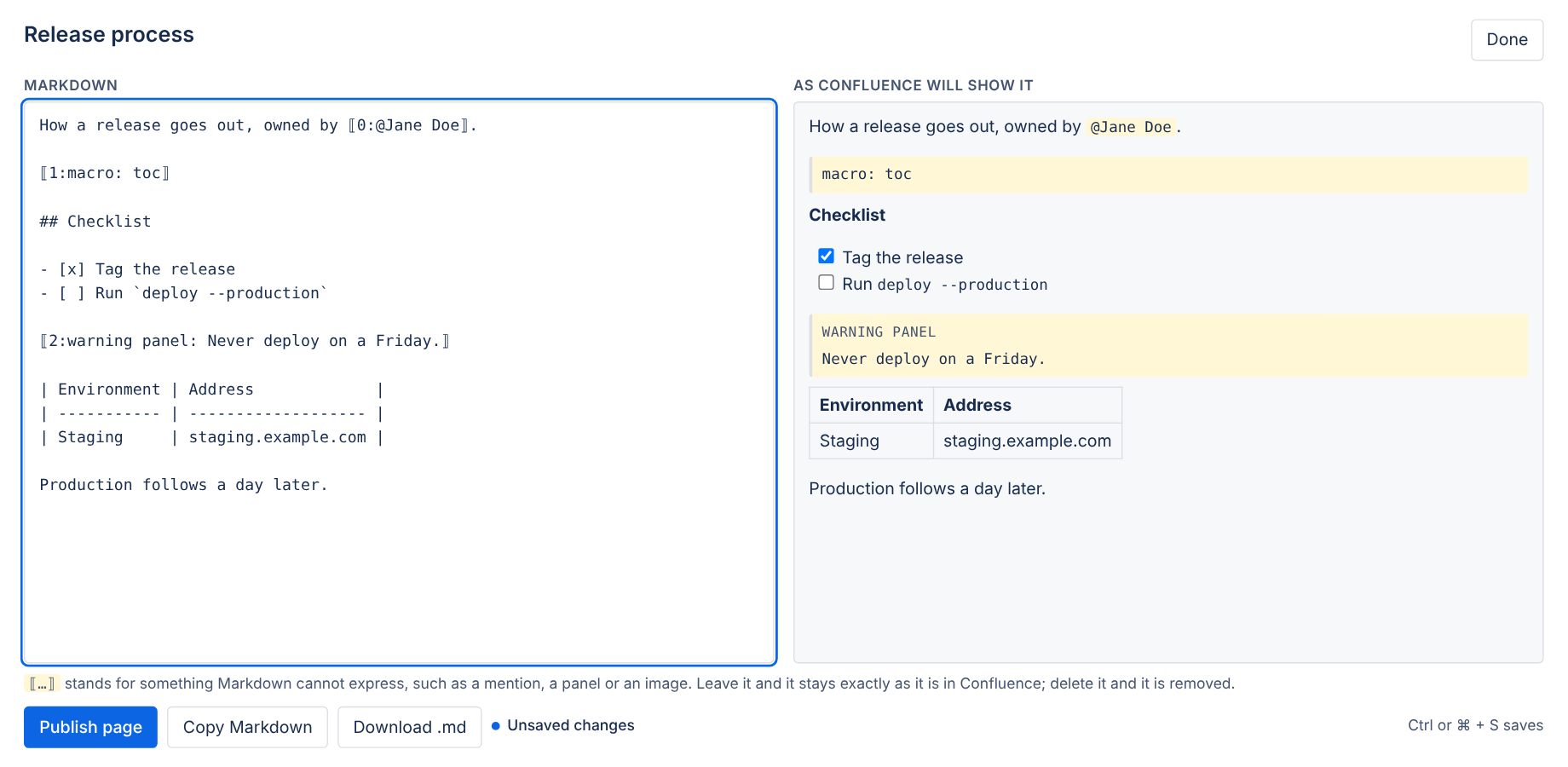
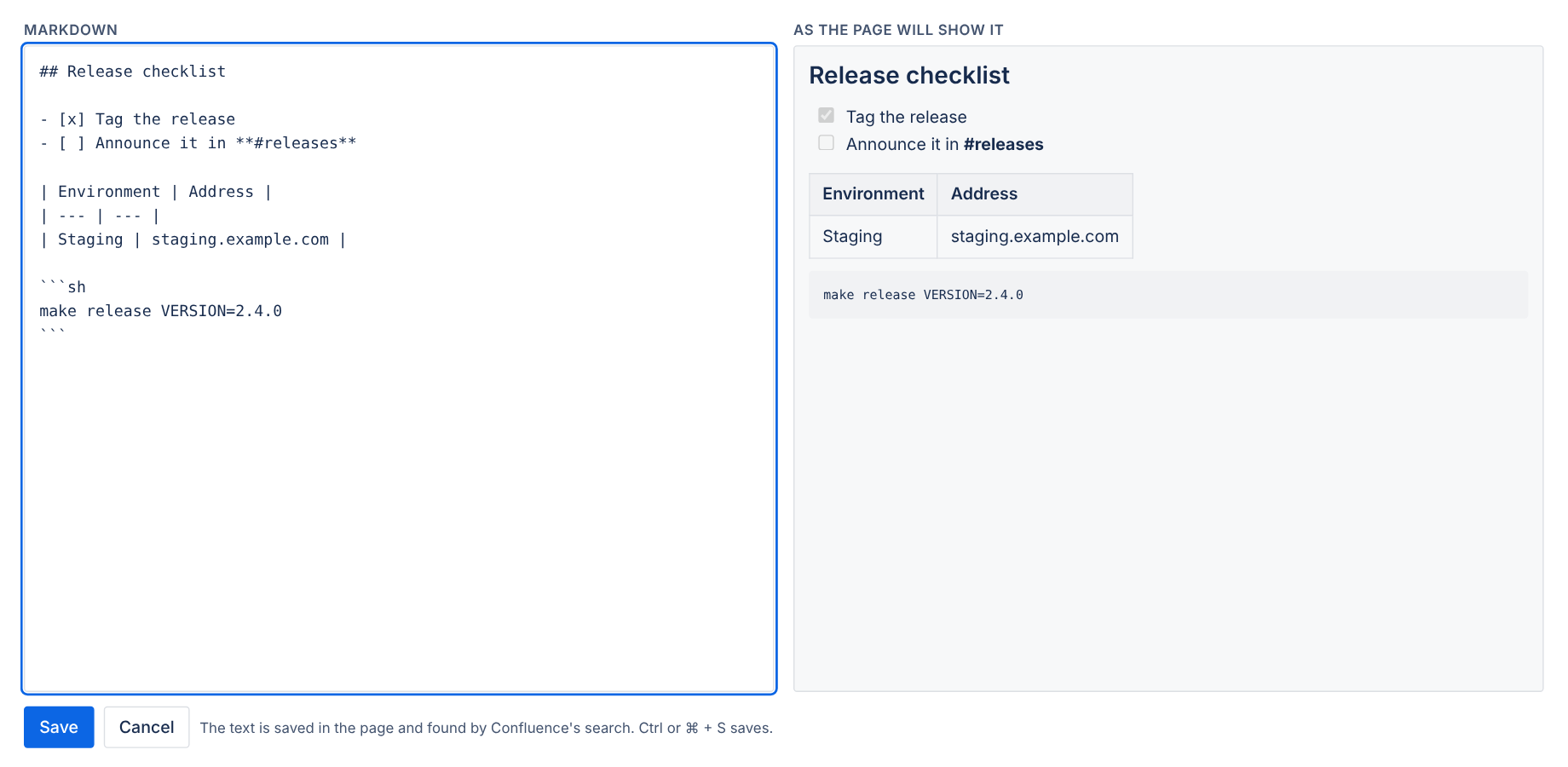
- Edit as Markdown. Open any page as Markdown in a plain text area beside a preview, and publish it as an ordinary Confluence page.
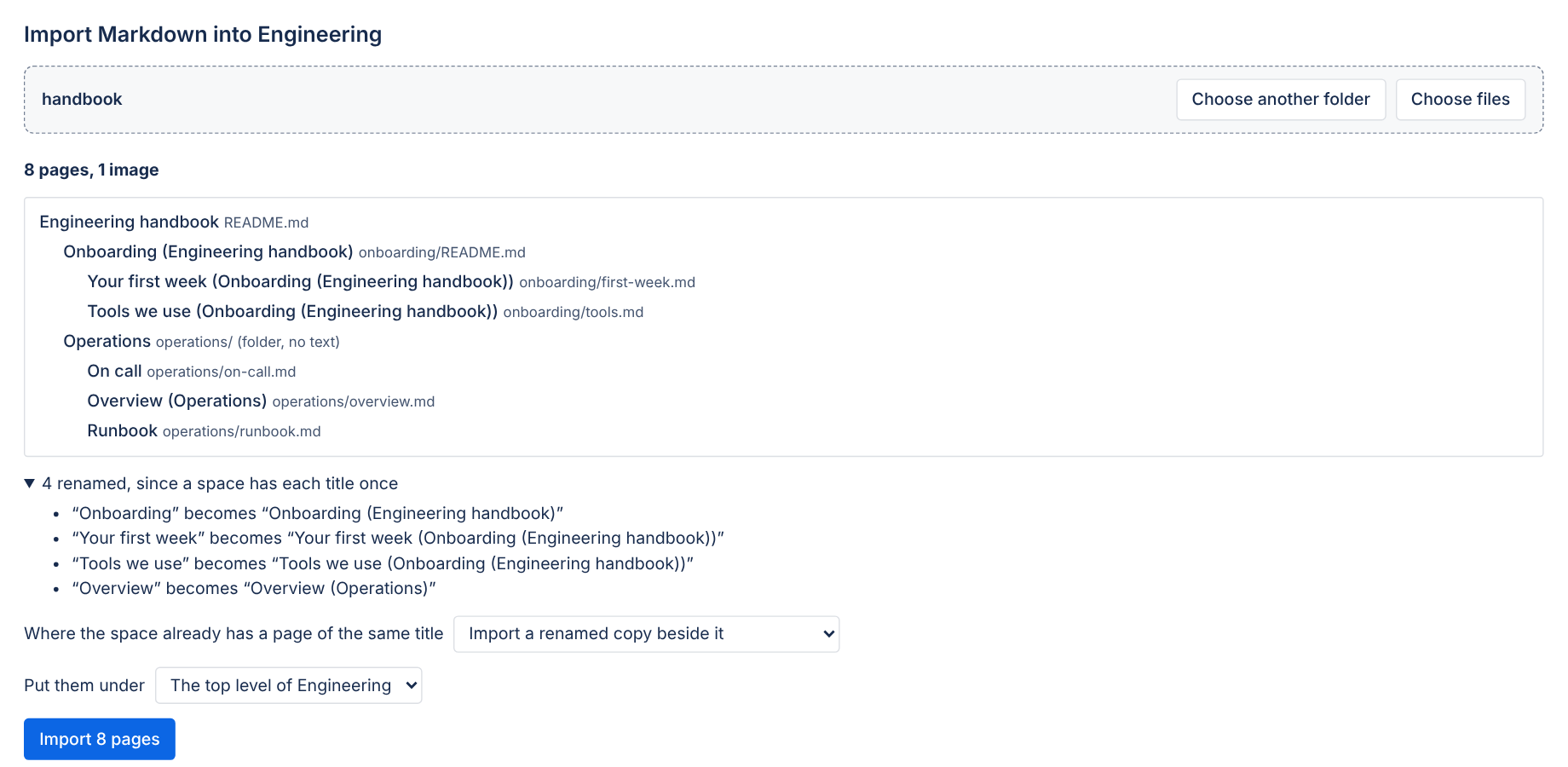
- Import Markdown. Choose a folder of Markdown files and get a tree of pages, with links between the files and their images kept.
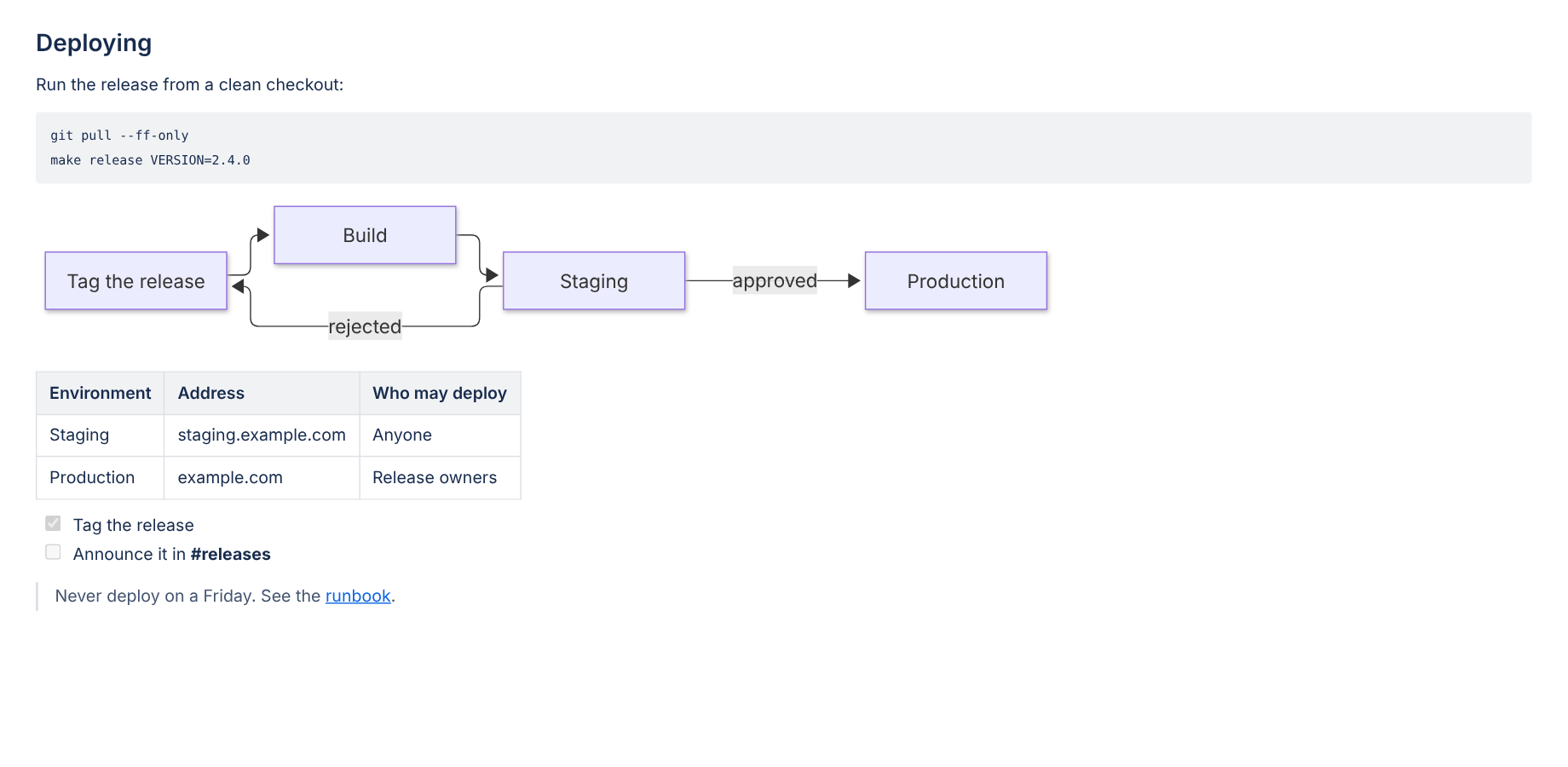
- Markdown block. Keep a part of a page as Markdown: a macro that shows it formatted, in light or dark mode, and that search finds.
- Export as Markdown. Download a page, with or without the pages beneath it, as a zip of Markdown files with their pictures.
The pages it writes are native Confluence pages. Search finds them, anyone can edit them in Confluence's own editor, and they stay exactly as they are if you uninstall the app.
Editing a page
- Open the page, then the ⋯ menu at its top right.
- Choose Edit as Markdown.
- Edit on the left; the right side shows what Confluence will show.
- Choose Publish page, or press Ctrl or ⌘ + S.
Publishing saves a new version, which you can see and restore in the page's history like any other.
Tokens
Some things on a page have no Markdown form: a macro, a mention, a panel, a layout with columns, an image. Each appears in the text as a short token:
⟦1:macro: toc⟧
Leave a token where it is and what it stands for is saved back exactly as it was. Move the token and it moves. Delete the token and it is removed from the page. The text inside a token is only a label; editing it changes nothing.
If someone else edits at the same time
If another version was published while you were editing, yours is not saved over it. Copy your Markdown, choose Done, open the editor again, and apply your changes to the newer text.
The editor works on the published page. Finish or discard any unpublished draft in Confluence's own editor first.
Importing a folder
- In the space, open Import Markdown in the space's sidebar, under Apps.
- Choose a folder, or choose files.
- Check the plan: every page that will be created, in its place in the tree, with anything renamed or left out listed underneath.
- Choose where to put the pages, then Import.
How files become pages:
| In the folder | In Confluence |
|---|---|
| A Markdown file | A page |
| A folder | A page, with the folder's files beneath it |
README.md or index.md in a folder |
The text of that folder's page |
README.md at the top |
The page everything else goes under |
| A link to another file in the folder | A link to that file's page |
| An image file shown in a page | An attachment on that page, shown where it was |
A page's title is its front matter title, else its first heading,
else its file name. A space holds each title once, so a title that is
already used is told apart by its parent's title; the plan lists every
such rename before you import.
Links and images that point at something you did not choose stay as they were written, and the plan lists them.
Running an import again
When the space already has a page with the title of a page you are importing, the plan asks what to do: import a renamed copy beside it, or leave that page as it is and import the rest. With the second choice, running the same import again adds only what is missing, so an import that was interrupted can simply be run once more. A page that is left alone is not changed in any way; new pages are still placed beneath it and link to it.
One page failing does not stop the others. Only the pages beneath a page that could not be created are held back, and they are listed.
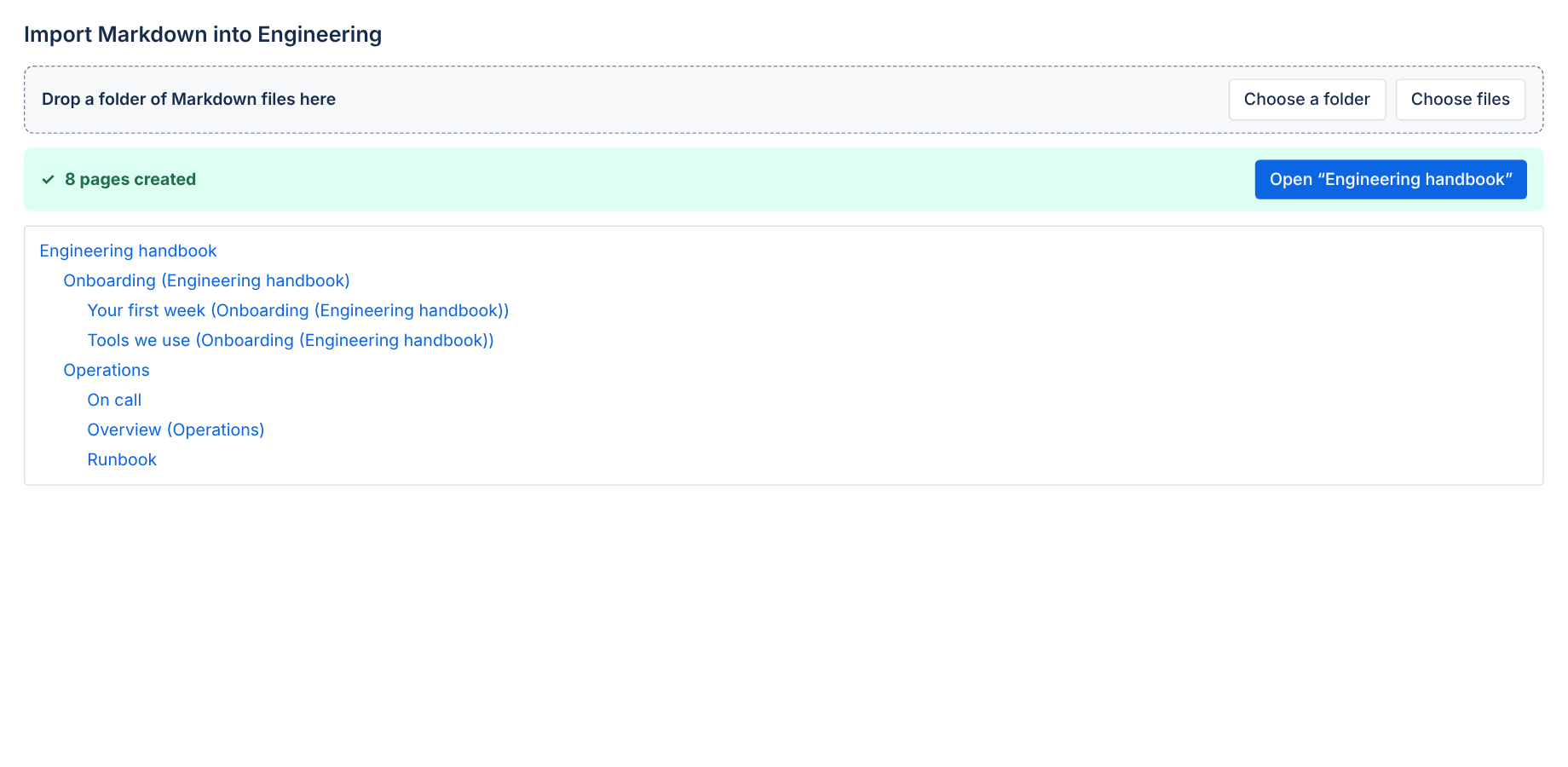
When the import is done you get a list of the pages created, and of anything that could not be done, page by page.
Exporting pages
- Open the page, then the ⋯ menu at its top right.
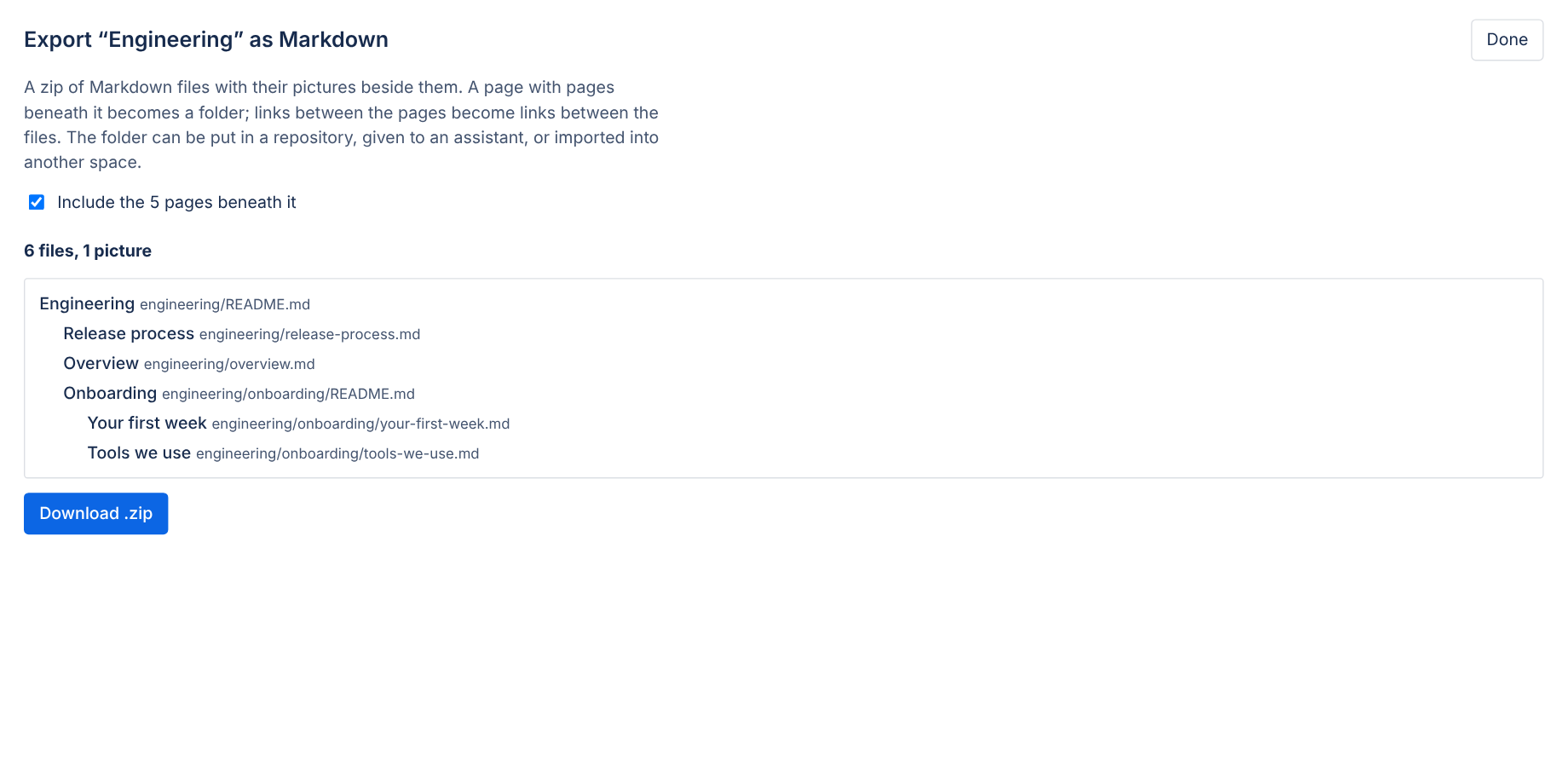
- Choose Export as Markdown. The pages beneath the page are read and the files they will become are listed.
- Untick Include the pages beneath it to export the one page.
- Choose Download .zip.
In the zip:
- a page with pages beneath it is a folder with a
README.md; a page without is one.mdfile, named after its title; - each file opens with its page's title, so that names survive a title that is not a good file name;
- a link to another exported page is a link to its file, and a picture
is a file under
images/beside the Markdown that shows it; - what Markdown has no form for is written as the nearest thing: a mention as the name, a date as the day, a panel as a quote under its kind, an expand and a layout as their content, a merged table as an HTML table. A macro leaves a comment naming it, since what it draws exists only in Confluence.
The folder can be committed to a repository, read by an assistant, or imported again with Import Markdown, here or in another space or site: it is laid out as the import reads one. One export holds up to 500 pages; for a larger tree, export its parts.
Download .md in the editor saves the one page you are editing, as it stands in the editor, without its pictures.
A Markdown block on a page
Use a block when the text should stay Markdown, such as a README you paste in again whenever it changes.
- Edit the page, type
/markdown, and choose Markdown. - Write or paste Markdown on the left; the right side shows the result.
- Choose Save, then publish the page.
To change a block, select it in the editor and choose its edit button.
The block's text is stored in the page itself, and Confluence's search finds pages by what their blocks say. The block follows the reader's theme, light or dark. Links in a block open in a new tab.
Diagrams
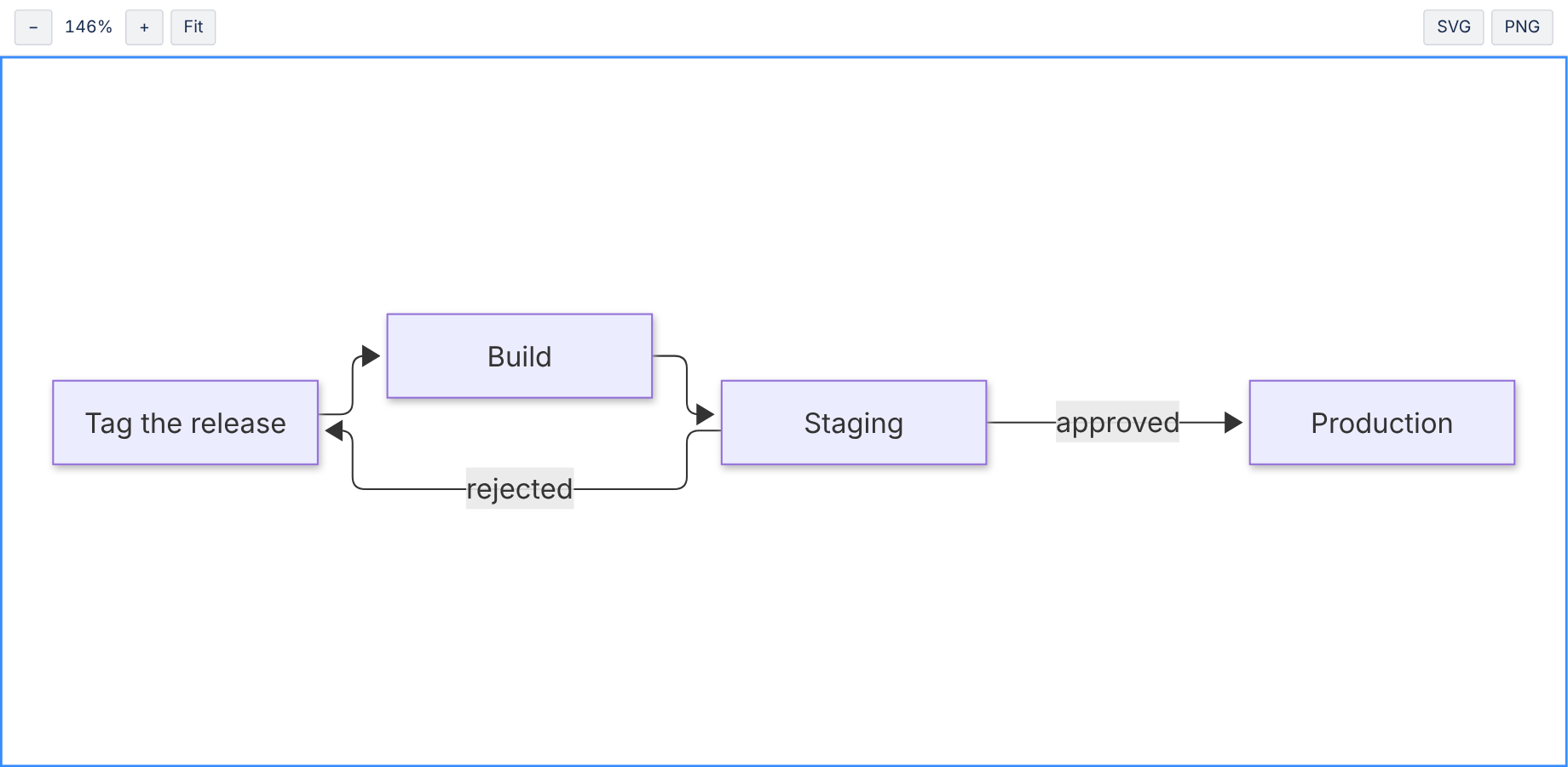
A code block fenced as mermaid is drawn as a diagram, in the block
and in the editor's preview as you type:
```mermaid
flowchart LR
  Draft --> Review --> Published
```
Flowcharts, sequence, class, state, entity and Gantt diagrams and the other kinds Mermaid knows are drawn. The drawing happens in your browser; the diagram's text goes nowhere. A diagram that does not parse is shown as its code, with the reason beneath it.
Point at a diagram and choose Enlarge to open it over the whole window. There it can be zoomed with the buttons, the wheel or the plus and minus keys, moved by dragging or with the arrow keys, and fitted back with Fit or the zero key.
A block shows GitHub-flavoured Markdown. HTML written inside the Markdown is not shown: a block can never run a script or change how the rest of the page looks.
What it supports
Headings, bold, italic, strikethrough, links, ordered and unordered lists, task lists, tables, quotes, code blocks with a language, inline code and horizontal rules, as GitHub-flavoured Markdown.
What it does not do
- It does not keep pages in step with a Git repository.
- It does not export a whole space at once.
- When a page is exported to PDF or Word, a Markdown block is written into the file as ordinary headings, lists, tables and code. A diagram is exported as its code.
- In an imported or edited page, a diagram written as code stays a code block. Diagrams are drawn in a Markdown block.
- Raw HTML in a Markdown file is imported as text.
Privacy and security
The app runs in your browser, inside Confluence, and works through Confluence's own API with your permissions: it can read and change only what you can. It has no server of ours behind it and stores nothing; when a page is exported, Atlassian runs the app once per block to write the block into the file. See the privacy policy.
Permissions it asks for, and why:
| Permission | Used to |
|---|---|
read:page:confluence |
Read the page you edit, and list a space's pages |
write:page:confluence |
Publish your edit, and create imported pages |
read:space:confluence |
Name the space you import into |
write:confluence-file |
Attach the images of imported files |
A Markdown block needs no permission of its own.
Price
Free for sites of up to 10 users. Above that it is priced per user and billed by Atlassian with your other apps, after a 30 day trial. If a licence lapses, nothing you made is hidden: what is on your pages stays shown, and only making and changing are turned off.
Help
See support.
Questions
What does Markdown Pages cost?
It is free for sites of up to 10 users. From 11 to 100 users it is 1.00 USD a user a month, less at each larger tier, and Atlassian bills it with your other apps. Atlassian gives every paid app a 30-day trial, so you can try it on a larger site before you pay.
Does any of our content leave Confluence?
No. The app runs in your browser, inside Confluence, and reads and saves pages through Confluence's own API. It has no server of ours behind it and stores nothing. When a page is exported to PDF or Word, Atlassian runs the app once per Markdown block to write the block into the file, and that step calls nothing outside Confluence either.
What permissions does it ask for, and why?
It works as the person using it, so it can read and change only what that person can. It asks for:
read:page:confluence, to read the page you edit or export and to list a space's pages;write:page:confluence, to publish your edit and create imported pages;read:space:confluence, to name the space you import into;write:confluence-file, to attach the images of imported files;read:attachment:confluence, to put the pictures of exported pages in the zip.
A Markdown block needs no permission of its own.
What happens if our license lapses, or we uninstall the app?
Nothing you made is hidden when a license lapses. Pages you edited or imported are ordinary Confluence pages, and Markdown blocks already on pages are still shown and exported. What stops is making and changing: Publish page, Import and saving a block are turned off, and the screen says that the license has lapsed. You can still read, copy and download the Markdown.
If you uninstall the app, pages you edited or imported stay exactly as they are, and anyone can edit them in Confluence's own editor. A Markdown block keeps its text in the page itself, but it is drawn by the app.
Does it work in dark mode?
Yes. The editor, the import and export screens and the Markdown block follow the reader's Confluence theme, light or dark.
Is there a version for Confluence Data Center or Server?
No. Markdown Pages is built on Atlassian Forge and runs on Confluence Cloud only.
Why was my edit not published?
If the editor says the page was changed in Confluence while you were editing, someone else published it first, and yours is not saved over theirs. Copy your Markdown, choose Done, open Edit as Markdown again, and apply your changes to the newer text.
The editor works on the published page. If the page has an unpublished draft, finish or discard it in Confluence's own editor first.
Why did the import rename some pages?
A space holds each title once. When a page you import has a title the space already uses, the plan offers two choices: import a renamed copy, told apart by its parent's title, or leave the existing page as it is and import the rest. Every rename is listed in the plan before you choose Import.
Our import stopped partway. How do we finish it?
Run the same import again and choose to leave pages that already exist as they are. Only what is missing is created. One page failing does not stop the others; only the pages beneath a page that could not be created are held back, and the list at the end names each one.
Why is our export missing pages or pictures?
One export holds up to 500 pages. When a page has more beneath it, the screen says so and exports the first 500; export a page further down the tree for the rest. A picture that could not be fetched is left out of the zip and listed by name on the screen.
Why does my diagram show as code?
In a Markdown block, a mermaid code block that does not parse is
shown as its code, with the reason beneath it. Fix the line the reason
names and save the block again.
Diagrams are drawn only in a Markdown block. In a page you imported or edited as Markdown, a diagram stays a code block, and when a page is exported to PDF or Word, a diagram is written as its code.
How do we get help?
Write to support from https://mart.sigfrid.systems/support/. Say which page or folder you were working on, what you did and what happened, and copy any error message word for word. A few lines of the Markdown that did not come out as you expected help most.
Still stuck? Search every app's help in the help centre, or write to us.
More from Sigfrid Mart
-

Mermaid Diagrams & Export for Confluence
Mermaid diagrams drawn sharp at full width, zoomable, in dark mode, and kept as pictures in exports.
-

OpenAPI Viewer for Confluence
OpenAPI and Swagger files as API documentation on a Confluence page, with nothing sent out.
-

Plain Text Mode for Jira
Edit Jira descriptions and comments as plain Markdown. Nothing rewrites what you type.
-

PlantUML & Graphviz Diagrams for Confluence
PlantUML, C4 and Graphviz diagrams drawn in your browser, with no rendering server.
-

Portal Request Details for Jira Service Management
Show customers custom fields, the assignee, SLA time left and linked requests on the portal.
-

Space Copy for Confluence
Copy a Confluence space, or into one, with its links leading to the copies.